
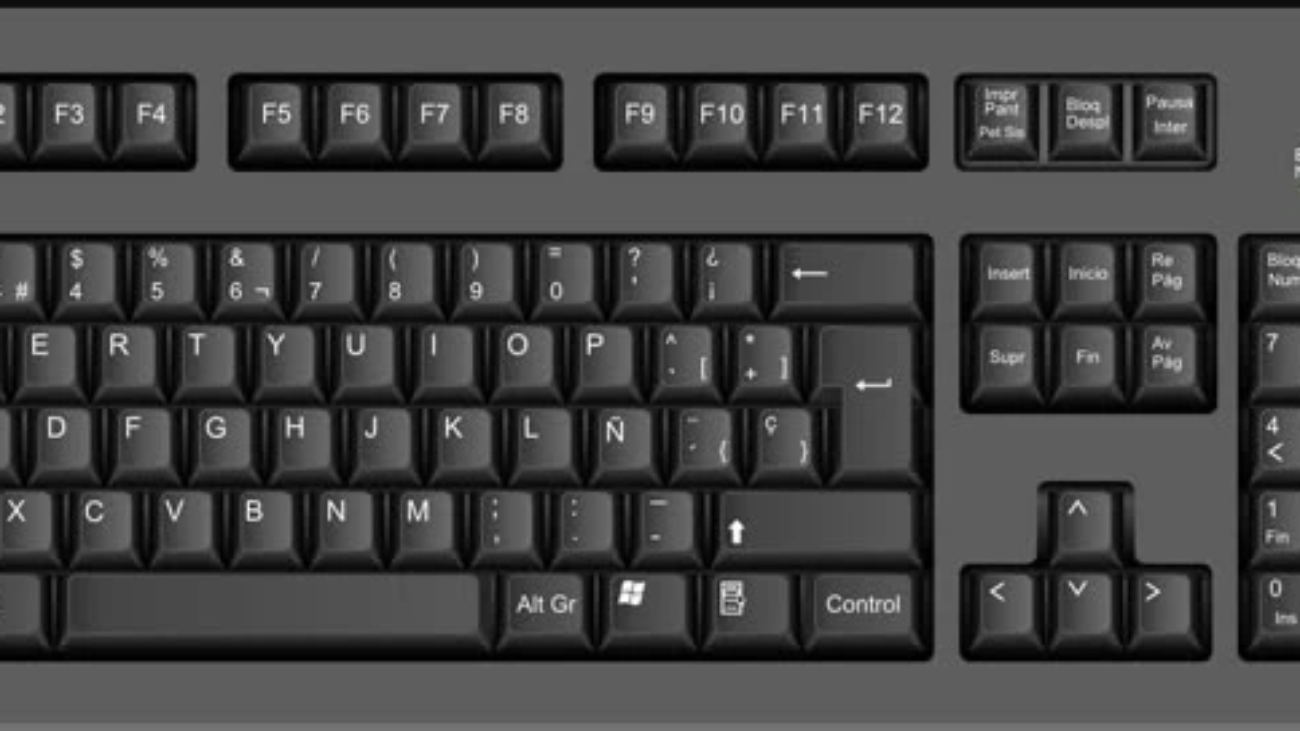
So friends, you must have used a computer at some point or the other and you must have faced a problem there, which is a very big one, When you are doing important work on the computer, it might have happened to you many times that at the last moment your keyboard does not work and in such a situation you cannot suddenly get a new keyboard, so it is possible that you might have missed that work.
Table of Contents
But how would you feel if I told you that we have a solution to this problem? So the solution is that whenever you do your important work, if your keyboard does not work at that time, then you can use “On Screen Keyboard” on your computer.
With its help, you will never miss any of your important work because you have an on-screen keyboard and how can you use it on your computer, let me tell you.
What is On Screen Keyboard?
So if I explain to you about on-screen keyboard in very simple language, then on-screen keyboard means when you use the keyboard on your computer’s display itself , in which your physical keyboard is not used.
And you will find this on-screen keyboard in every Microsoft Windows, be it Windows 7 or Windows 11.And now let us know how you can use the on-screen keyboard. To use the on-screen keyboard on your computer, you will have to follow some simple steps which are given below.
Steps to turn ON “On Screen Keyboard “
- – Open computer and Click on “Window Icon”
- – Click on “Settings” option
- – Click on “Ease of Access” option
- – Under Keybord section , Turn ON the toggle of “On Screen Keybord”
And if you want to know all these steps in detail, then we have told you all these steps in detail, which you can read below.
Step 1 : Open computer and Click on “Window Icon“
So let’s first follow the steps, in this step you have to open your computer and after opening it you have to simply click on the “Window icon”.
Step 2 : Click on “Settings” option
And after clicking on the window icon, you will see an option of “Settings” there, on which you have to click as you can see in the image.
And if you don’t see any settings option even after clicking on your window button then you can also “search” for settings in the search box below.
Step 3 : Click on “Ease of Access” option
And after clicking on the Settings option, many settings will open in front of you, out of which you have to click on the “Ease of Access” option.
Step 4 : Under Keybord section , Turn ON the toggle of “On Screen Keybord“
And after clicking on the Ease of Access option, you will see a “keyboard” section there, in which you have to turn the toggle of “On Screen Keyboard ” to “ON” as you can see in the image.
How to Open On Screen Keyboard
So to open the on-screen keyboard, you simply have to click on the text option wherever you want to type the text. After that, your on-screen keyboardwill open automatically .
How to Close On Screen Keyboard
To close the on-screen keyboard, you will see an “×” icon on the right side of the on-screen keyboard, simply click on it to close your on-screen keyboard, and your on-screen keyboard will be closed automatically.
How to Turn Off “On Screen Keyboard ” permanently?
So let’s now learn how to turn off our on-screen keyboard. To turn off your on-screen keyboard, you’ll need to follow a few simple steps, which we’ve outlined below .
Steps to turn OFF ” On Screen Keyboard ” permanently
- – Click on “Window Icon” and Tap on “Settings” option
- – Tap “Ease of Access” option
- – Under “Keyboard” section , Turn off the toggle of “On Screen Keybord”
And if you want to know all these steps in detail, then we have told you all these steps step by step below, you can read it.
Step 1 : Click on “Window Icon” and Tap on “Settings” option
So in the first step, you have to click on the “Window Icon” in your computer and after clicking, you will see an option of “Settings” there, on which you have to click.
And if you don’t see any Settings option there, you can also ” search ” the word “Settings” in the search box below.
Step 2 : Tap “Ease of Access” option
And after clicking on the Settings option, you have to come to the “Ease of Access” option, as you can see in the image.
Step 3 : Under “Keyboard” section , Turn off the toggle of “On Screen Keybord“
And after clicking on its access option, you will simply see a “Keybord” option there, in which you have to turn the toggle of On Screen Keyboard ” OFF “.
And to turn off the on-screen keyboard option, you simply have to click on the “toggle” as you can see in the image.
And after toggling it off, your on-screen keyboard will be turned off and whenever you click on the text option, your on-screen keyboard will not open automatically
What is the shortcut key for onscreen keyboard?
If you want to open the on-screen keyboard on your computer, then you can open the on-screen keyboard with the help of “Win + CTRL + O” key.
How to ON “On Screen Keybord” in my computer and laptop?
To turn on the On Screen Keyboard on your laptop or computer, you can do so by following the steps given below.
click on window icon > settings > ease of access > keybord > turn ON the toggle of “On Screen Keybord”
How do I turn off my On-Screen Keyboard?
To turn off your on-screen keyboard, you can follow the steps given below.
click on window icon > settings > ease of access > keybord > turn OFF the toggle of “On Screen Keybord”